Tools
Sino — Tools documentation
This page describes the main tools available in Sino and how to use them. Use it as a starting point for your design.
Brushes
What it’s for
Brushes let you paint, draw, or apply freehand strokes on the canvas.
How to use
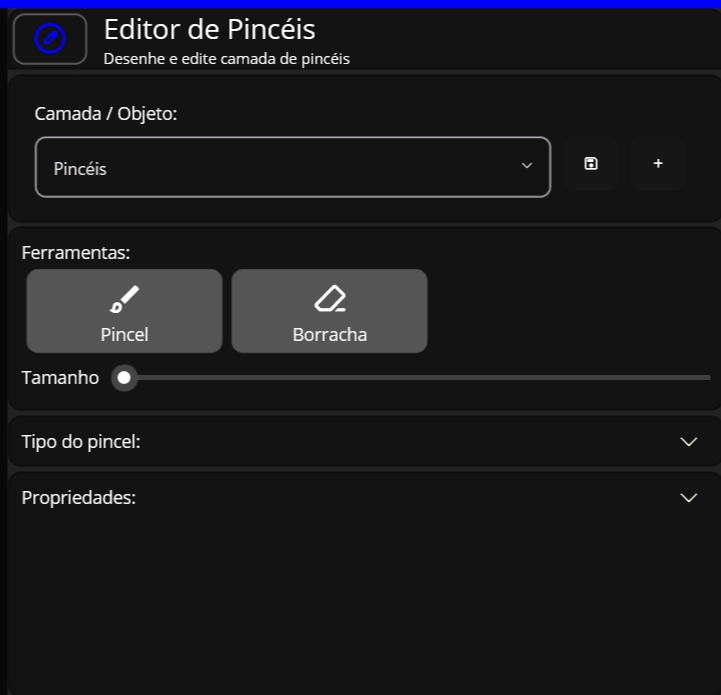
- Open Tools → Brushes.
- Choose a brush preset (e.g., Pencil, Marker, Airbrush).
- Adjust settings:
- Size: controls stroke thickness.
- Click and drag on the canvas to draw.
Polygons
What it’s for
Polygons let you create multi-point shapes (straight edges) such as triangles, pentagons, or custom polygon selections.
How to use
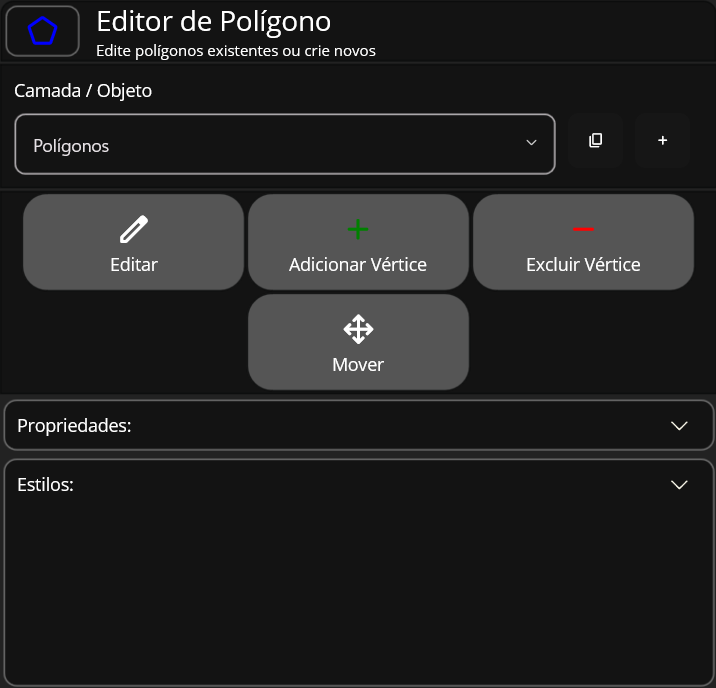
- Open Tools → Polygons.
- Select the option with the add vertex drawing.
- Click on the canvas to place the first point.
- Click again to place additional points (each click adds a vertex).
- Close the polygon:
- Click the first point again, or
- Press F to Close.
- Edit the polygon:
- Drag a vertex to reposition it (⚠️ Note: select the edit option).
- Add/remove points using the polygon controls Add and Remove.
Shapes
What it’s for
Shapes let you quickly insert common primitives like rectangles, circles, lines, and arrows.
How to use
- Open Tools → Shapes.
- Select a shape type (Rectangle, Ellipse, Line, Arrow, etc.).
- Click and drag on the canvas to place the shape.
- Move, resize, or rotate using the selection handles.
Uploads
What it’s for
Uploads let you bring external images.
How to use
- tab Tools → Uploads (or File → Upload, depending on your UI).
- Choose one option:
- Drag and drop files into the canvas, or
- Click Upload and select files from your computer.
- Wait for the upload to complete.
- Place the asset on the canvas and adjust as needed (scale, crop, position).
Tips
- Prefer optimized image sizes for faster loading.
- Keep filenames descriptive (e.g.,
header-illustration-v2.png) for easier searching later.
New Texts
What it’s for
New Texts allows you to insert Csx text blocks.
How to use
- Open Tools → New Texts.
- Click on the canvas where you want the text.
- Type your content.
- Resize the text box by dragging its edges.
Tips
- Use a defined type scale (e.g., 12 / 14 / 16 / 20 / 24) to keep typography consistent.
- If text overlaps shapes, adjust layer order or add a background behind the text.
New Pages
What it’s for
New Pages lets you create additional pages/boards/canvases inside the same Sino project (for variations, steps, or different screens).
How to use
- Open Pages panel.
- Click New Page.
- Switch between pages using the Pages panel.
Tips
- Use pages to separate different flows or iterations instead of crowding one canvas.
- Keep page names consistent (prefix with feature, then variation/version).
Common workflow example
- Uploads: import brand assets and reference images.
- Shapes: build the layout and UI structure.
- New Texts: add headings, labels, and annotations.
- Brushes: add freehand notes or highlight areas.
- Polygons: create precise selections/masks for effects.
- New Pages: duplicate and iterate for alternative designs.